How to Punch In
This guide walks you through the steps to Punch In your attendance.
Navigate to Punch In in the Dashboard
- Select Punch In from the Sidebar.
- Follow the steps below.
note
You may be asked to accept permissions for access to your camera or location. This is used for clicking your picture as well as logging your location when you punch in. You must approve these permissions in order to punch in your attendance.
1. Click your picture
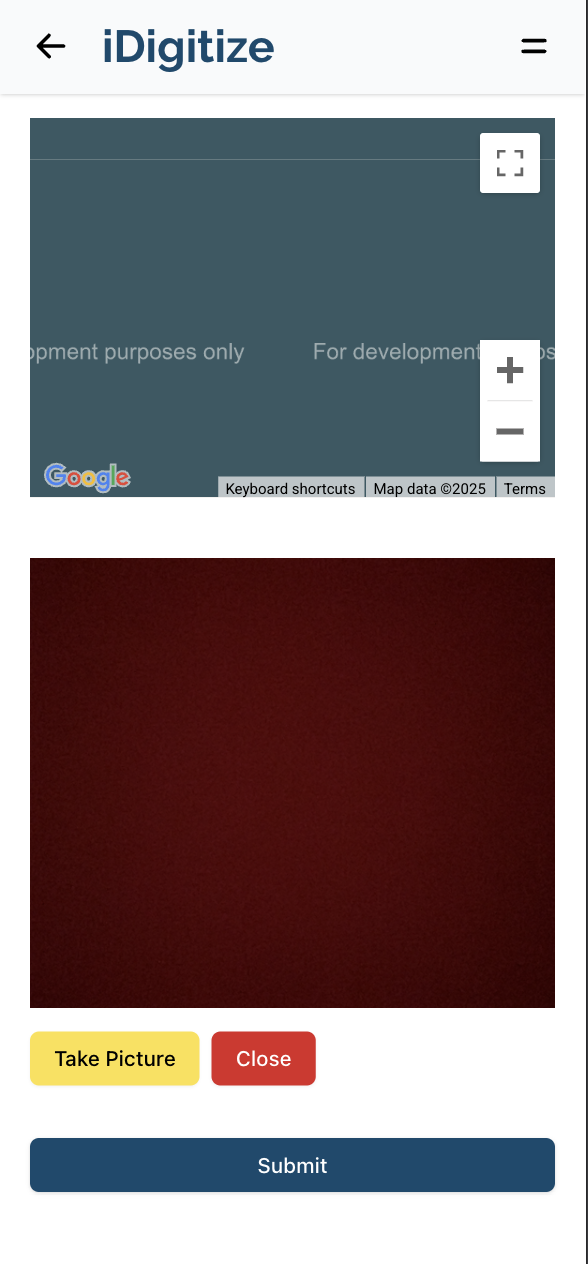
- Tap/Click on the 'Open Camera' button.
- Then, your camera will be accessed and you will be able to see yourself on screen.
- You can then tap/click on 'Take Picture', to capture the image, or you can tap/click on 'Close' to cancel.
- If you tapped/clicked on 'Take Picture', the captured image will be shown on screen, with a 'Remove' button below it.
- Clicking the 'Remove' button will delete the captured image and you will need to capture another image.
2. Submit the captured image
- Tap/Click on the 'Submit' button to successfully Punch In your attendance.
note
Your location will be automatically accessed from your device's GPS.