Apply for a Leave
This guide walks you through the steps to apply for a leave in the HRMS Dashboard. Follow these steps to ensure that all necessary information is correctly entered.
Navigate to Leave Application in the Dashboard
- Select Leave Application from the Sidebar.
- This opens the form to fill the leave application details.
- Follow Step 1 or Step 2 based on the type of leave you wish to apply for.
Apply for a Priveledge Leave
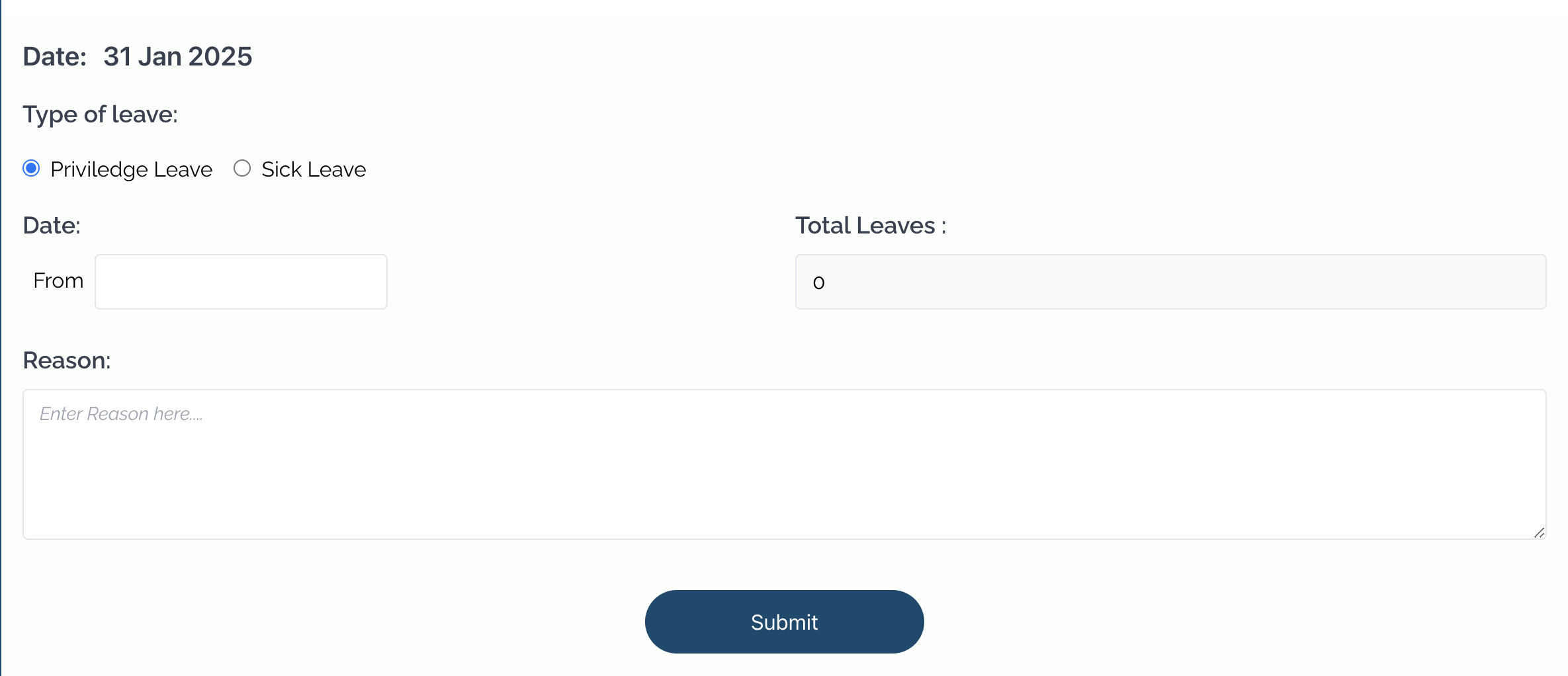
- Click on the 'Priveledge Leave' radio button.
- Select a 'From' date.
- Select a 'To' date.
- After selecting the 'From' and 'To' date, the 'Total Leaves' will be auto-generated.
- Then, enter the reason for the leave in the input field above the 'Submit' button.
- Finally, click on the 'Submit' button.
Apply for a Sick Leave
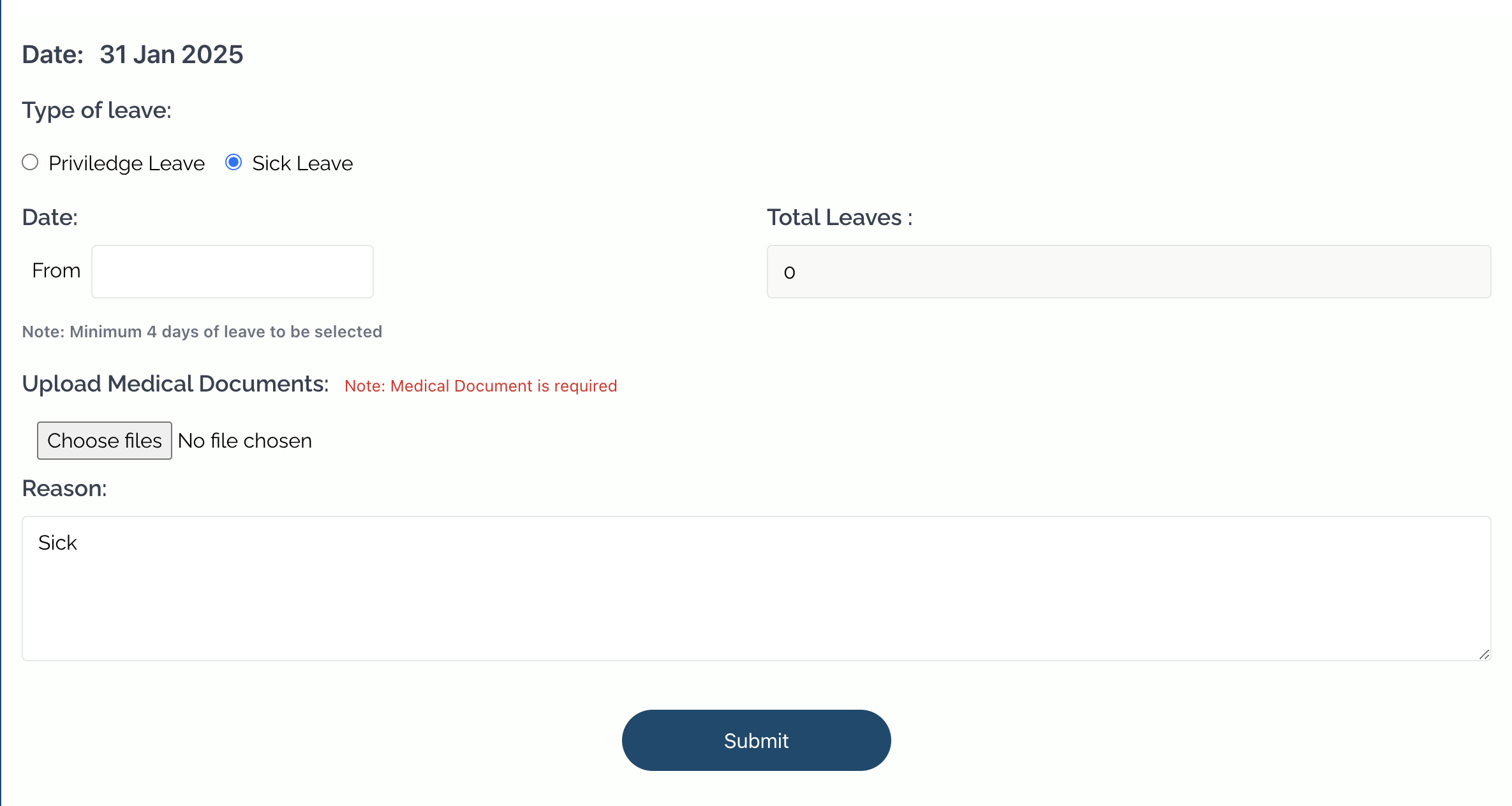
- Click on the 'Sick Leave' radio button.
- Select a 'From' date.
- Select a 'To' date.
- After selecting the 'From' and 'To' date, the 'Total Leaves' will be auto-generated.
note
The duration of the leave must be more than or equal to 4 days.
- Next, you need to upload medical documents as proof of your sickness.
- Then, enter the reason for the leave in the input field above the 'Submit' button.
- Finally, click on the 'Submit' button.