View Trips
This guide walks you through the steps of Viewing Trips.
Navigate to the Trips page in the Dashboard
- Select 'Trips' from the Sidebar.
- This opens the Trips page.
How to View Live Location of an Employee
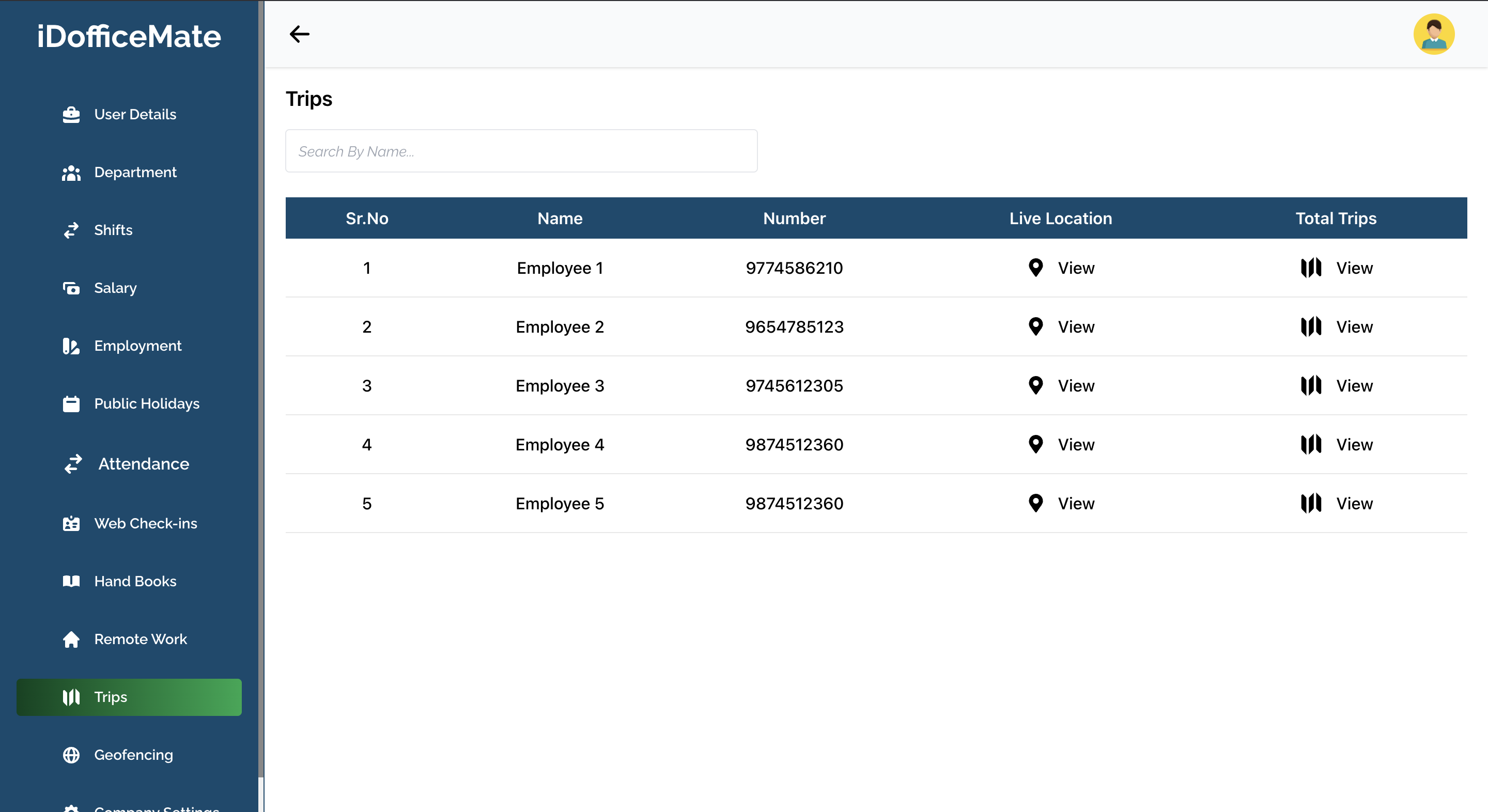
- Click View button in the Live Location column on an Employee Row.
- This opens Google Maps with the live location of the employee.
How to View All Trips of an Employee
- Click on the View button in the Total Trips column on an Employee Row.
- This opens the page with a list of all trips associated with the employee.
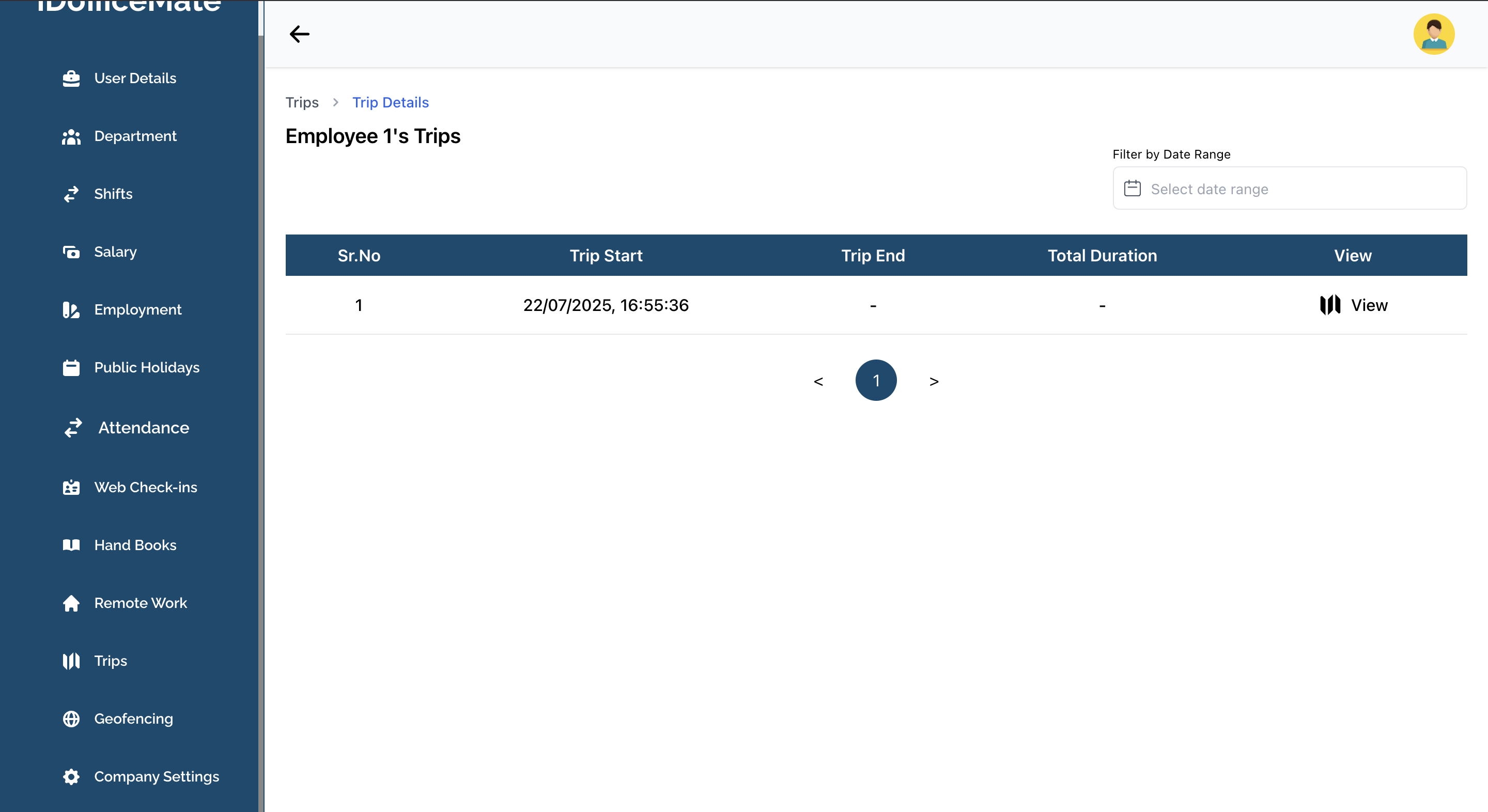
- You can choose to filter the trips by date, by clicking on the Date filter at the top of the page.
How to View the Details of a Trip
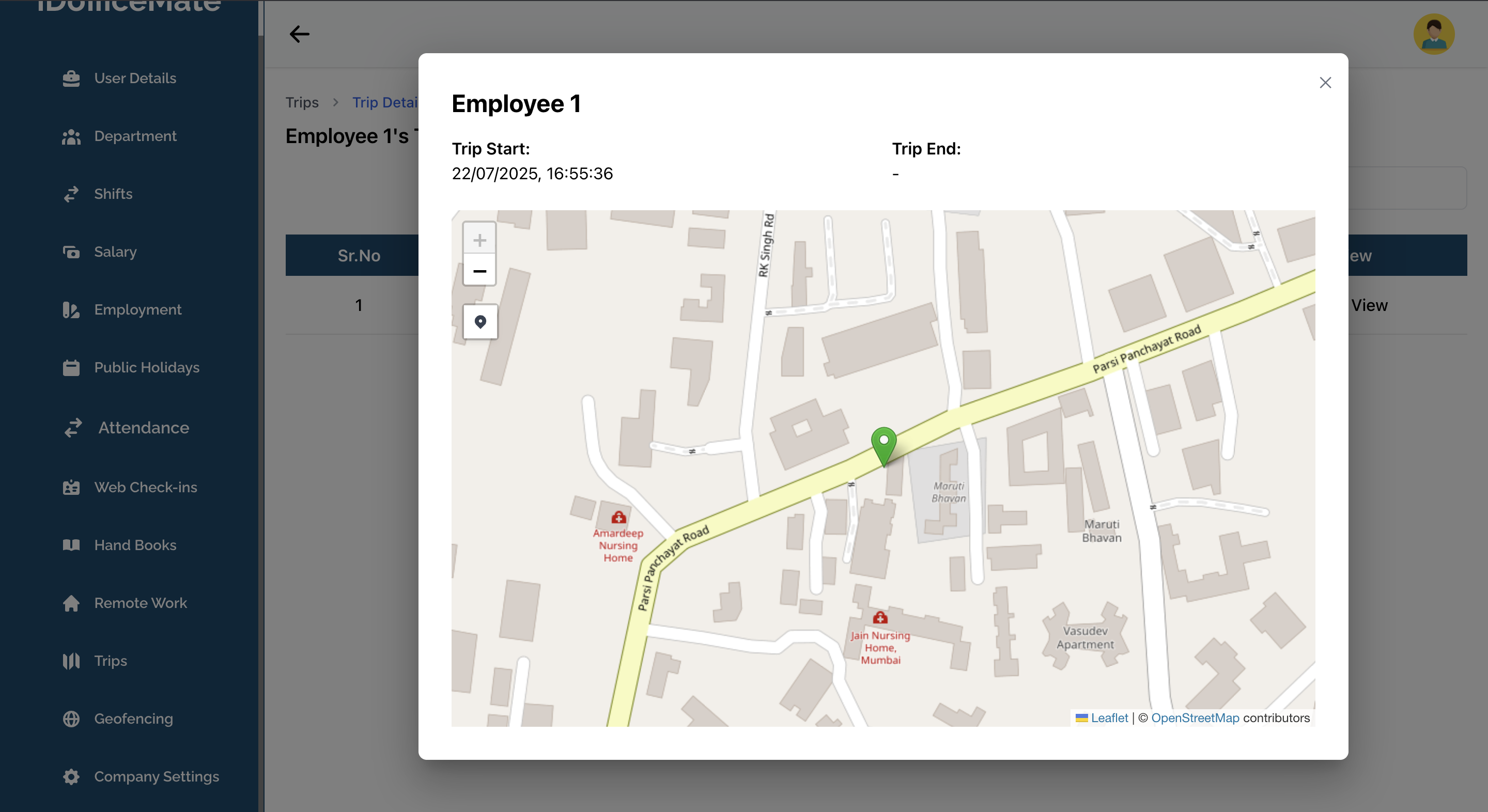
- Click on the View button in the View column on a Trip Row, in the Employee Trips page.
- This opens the modal with a map showing the route taken during the trip.