Approve/Reject Web Check-ins
This guide walks you through the steps to approve/reject an Employee's web check-in.
Navigate to Web Check-ins in the HRMS Dashboard.
- Select 'Web Check-ins' from the Sidebar.
- This opens the 'Employee Check-ins Listing' page.
Approve/Reject a Web Check-in
- In the Employee Check-ins Listing page, click on the View button under the Attendance column.
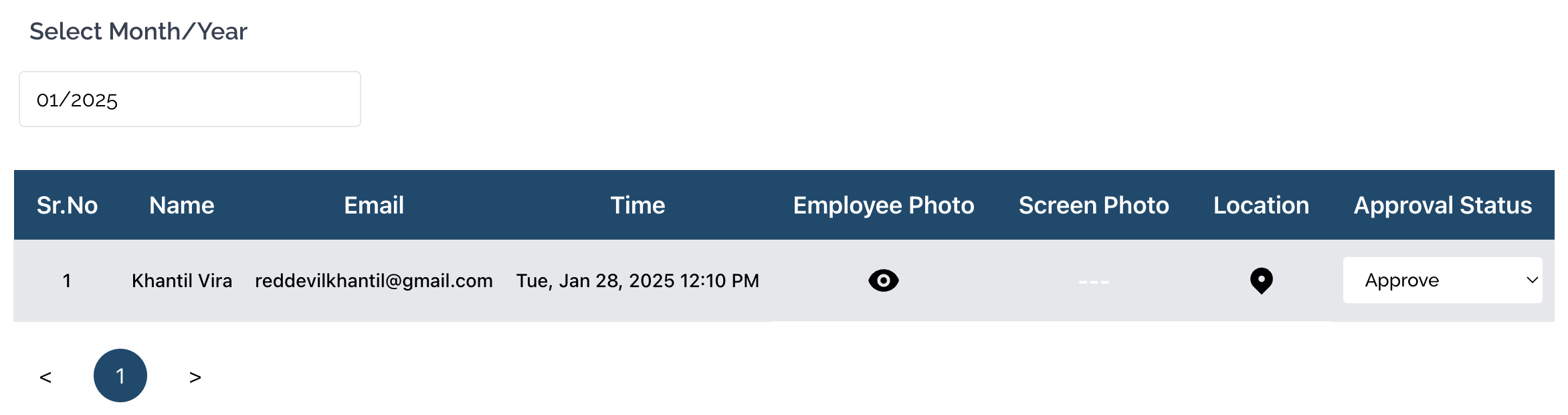
- This opens the Check-ins Listing page of an Employee.
- Click on the Eye icon, under the Employee Photo column of a Web Check-in to view the picture captured by the Employee while checking in.
- Click on the button, under the Screen Photo column of a Web Check-in to view the screen captured by the Employee while checking in.
- To approve/reject a check-in, click on the dropdown under the Approval Status column and select Approve or Reject.