Add/Edit Public Holidays
This guide walks you through the steps viewing the list of public holidays and adding a new public holiday or editing an existing public day.
Navigate to Public Holidays in the HRMS Dashboard.
- Select 'Public Holidays' from the Sidebar.
- This opens the 'Public Holidays Listing' page.
Add Public Holiday
- In the Public Holidays listing page, click on the 'Add Holiday' button at the top right of the page.
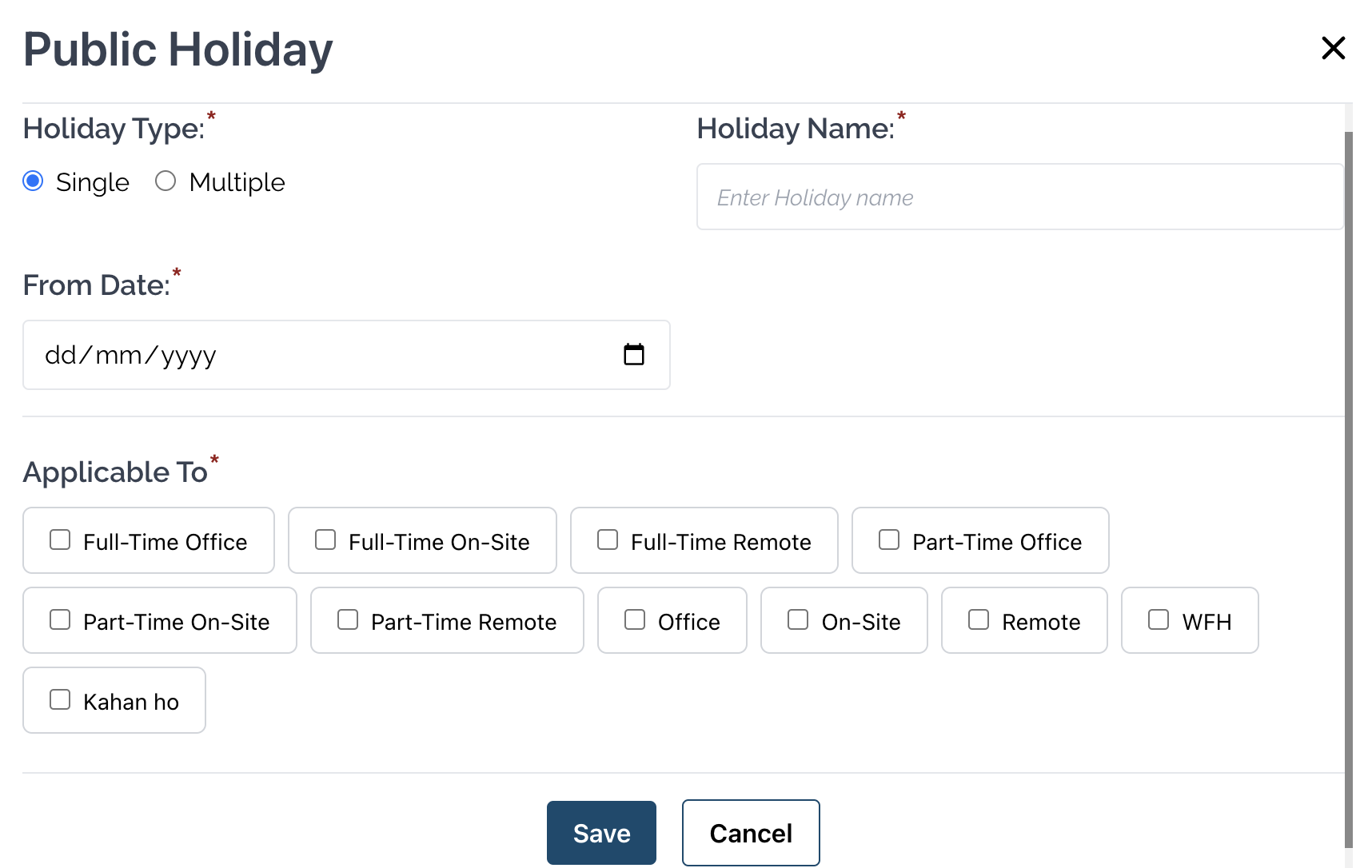
- This opens the modal to add a new Public Holiday.
- Select the Type of Holiday from the radio buttons.
- Enter the Name of the new Holiday.
- Select just the From date if you selected Single as the Holiday Type.
- If you selected Multiple as the Holiday Type, then you must also select the To date.
- Check the Employment Types that this Public Holiday will be applicable to.
- Finally, click on the Save button create the new Public Holiday and close the modal.
Edit Public Holiday
- In the Public Holidays listing page, under the Action column of a Public Holiday, click on the Edit icon.
- This opens the modal to edit the Public Holiday.
- Make the necessary changes as required.
- Finally, click on the Save button to save the changes to the Public Holiday and close the modal.