Add, Edit, Delete & View Employee
This guide walks you through the steps to find the list of Employees and Past Employees in the HRMS Dashboard.
Navigate to User Details in the Dashboard
- Select User Details from the Sidebar.
- Here you will find the list of 'Current' and 'Past' Employees.
- You can switch between the 'Tabs' at the top of the page to switch between 'Current' and 'Past' employee listings.
Add a new Employee

- Click on the '+ Add User Details'
- This opens the page with a form to fill the details of the 'Employee'
- This form contains 4 sections: 'Personal', 'Address' , 'Work' and 'Bank' Details.
- After filling up each section, click on the 'Next' button to proceed to the next section.
- Clicking on the 'Next' button in the last section will successfully create the 'Employee'.
View the details of an individual Employee
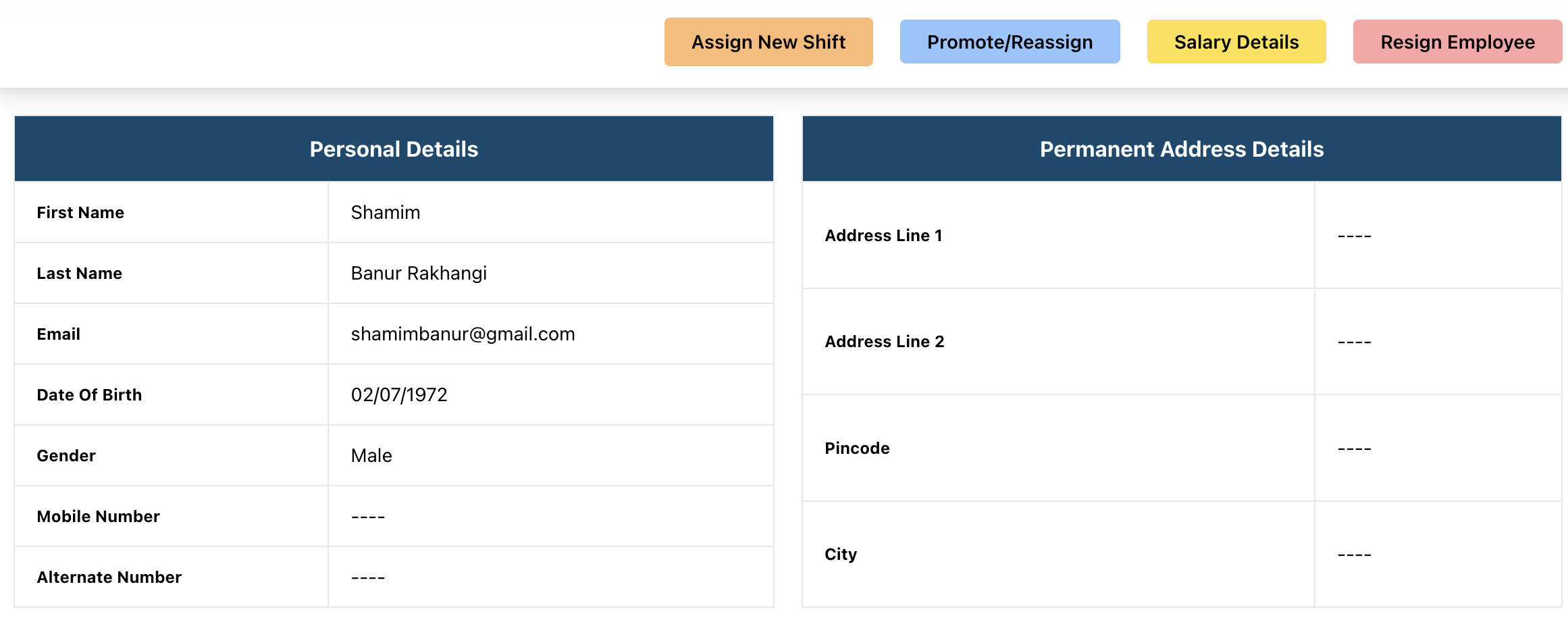
- Click on an 'Employee' in the 'Current' Employees table.
- The 'Employee Details' page will open up.
- You will be able to see all details of the 'Employee' along with 4 buttons that say 'Assign New Shift', 'Promote/Reassign', 'Salary details' and 'Resign employee'.
View and upload documents related to the Employee
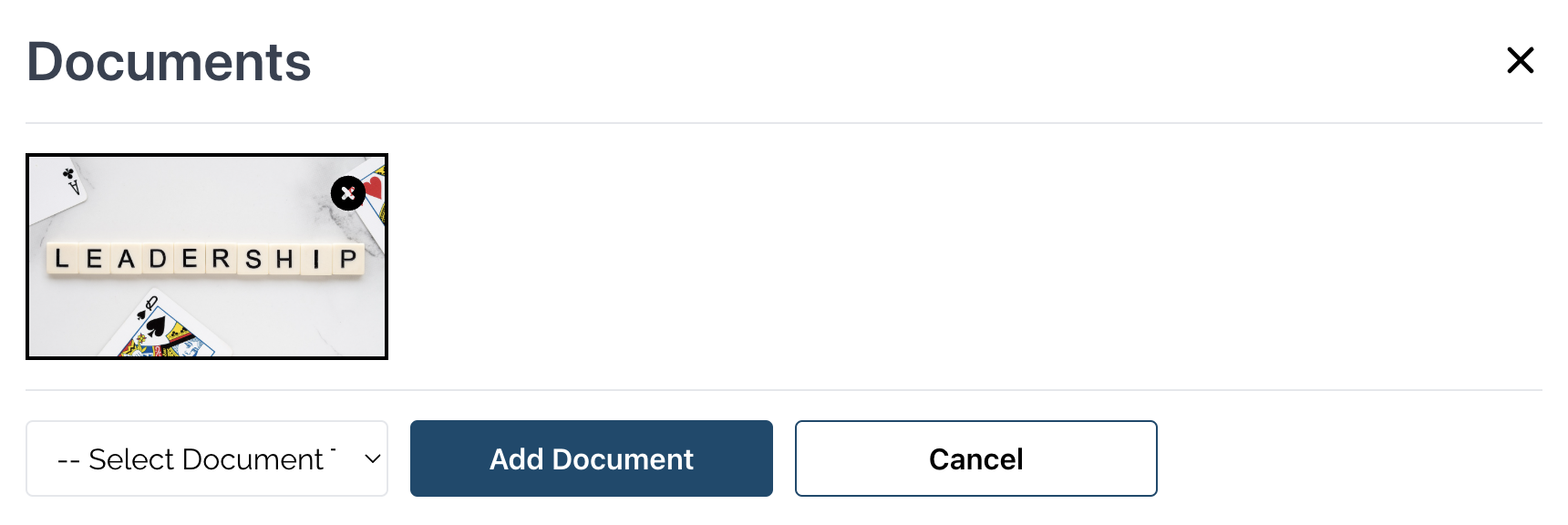
- In the 'Current' Employees listing page, under the 'Documents' column of an 'Employee', click on the 'View' button.
- This opens a modal showing the uploaded documents.
- In order to upload a document, select the type of document from the dropdown.
- After that, click on the 'Add Document' button in order to open the file explorer and select the document to upload.
View Leaves related to the Employee
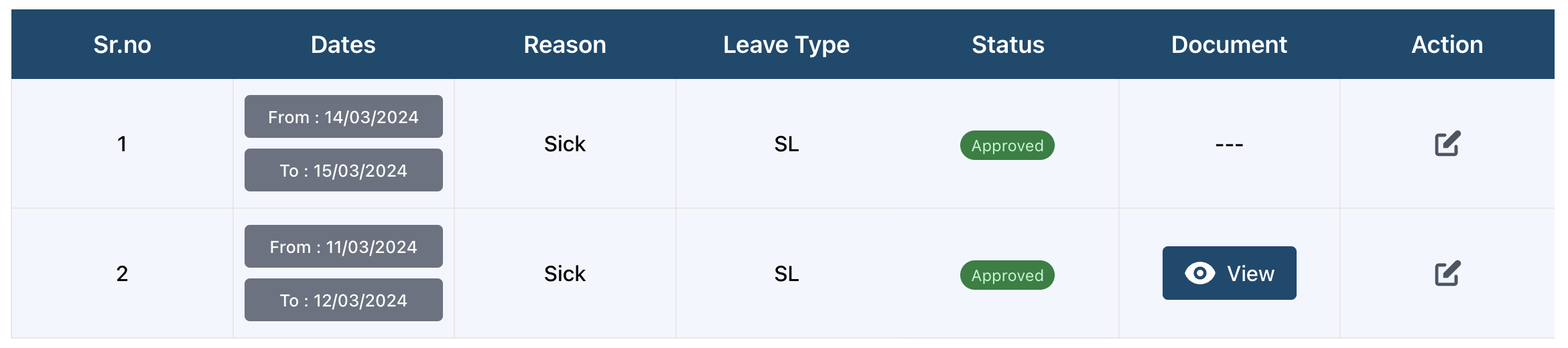
- In the 'Current' Employees listing page, under the 'Leaves' column of an 'Employee', click on the 'View' button.
- This opens the page listing the leaves taken by the 'Employee'
- Click on the 'View' button on a 'Leave' in order to view documents uploaded by the 'Employee' related to that 'Leave'
Edit the Details of an Employee

- In the 'Current' Employees listing page, under the 'Modify' column of an 'Employee', click on the 'Edit' Icon.
- This opens the 'Edit Employee Details' page.
- After making the necessary changes, keep clicking 'Next' and eventually the page will close by itself and the changes you made will be saved.
Delete an Employee
- In the 'Current' Employees listing page, under the 'Modify' column of an 'Employee', click on the 'Delete' Icon.
- This opens a confirmation modal in order to help you confirm that you wish to 'Delete' the 'Employee'.
- Clicking on 'Yes' will permanently 'Delete' the 'Employee' and close the modal.