Assign New Shift
This guide walks you through the steps to assign a new shift to an Employee.
Navigate to Employee Details page in the Dashboard
- Select 'User Details' from the Sidebar.
- In the 'Current' Employees listing page, click anywhere on an 'Employee' listing.
- This opens the Employee Details page.
Assign a new Shift
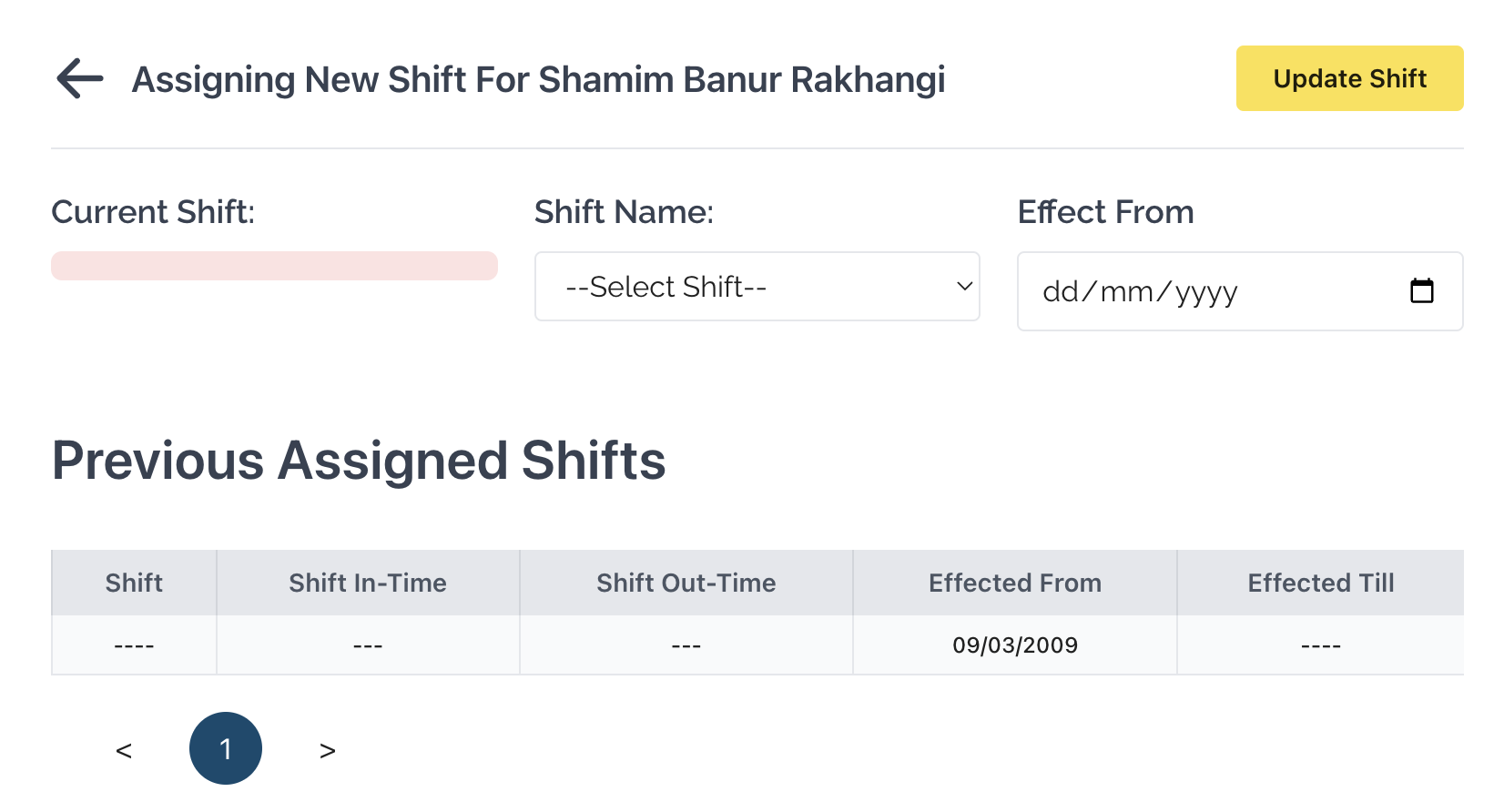
- Click on the 'Assign New Shift' button at the top of the page.
- This will open a modal.
- The current 'Shift' name will be shown next to which a dropdown is located.
- From this dropdown, select the new shift you wish to assign.
- After that select the date that the new shift will be effective from.
- Below, the previously assigned shifts can be seen in a table
- Finally, after making the necessary changes, click on the 'Update Shift' button located on the top right of the modal.