Employment Type
This guide walks you through the steps of Changing an Employee's Employment Type.
Navigate to Employee Details page in the Dashboard
- Select 'User Details' from the Sidebar.
- In the 'Current' Employees listing page, click anywhere on an 'Employee' listing.
- This opens the Employee Details page.
Change Employment Type
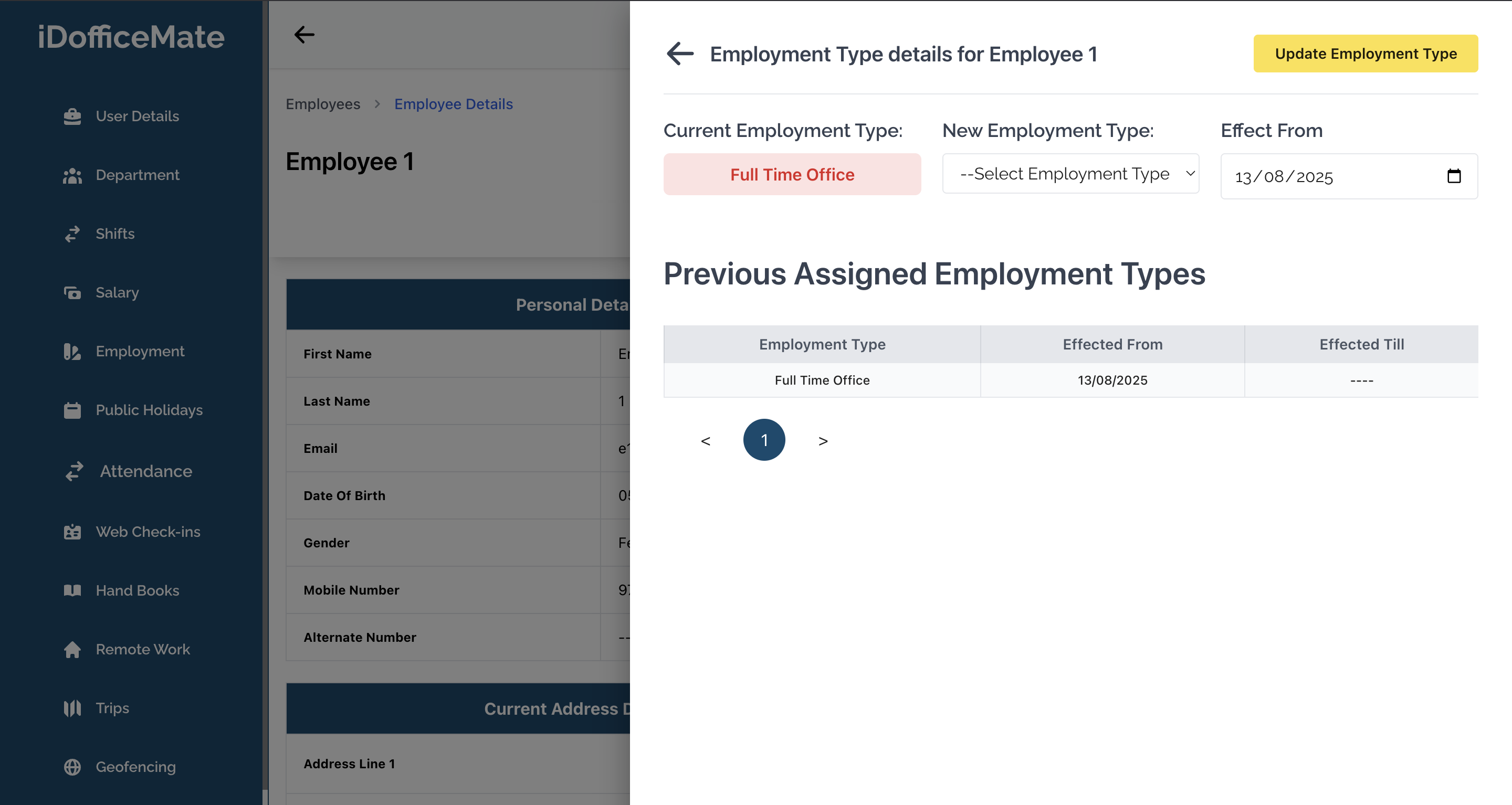
- Click on the 'Employment Type' button at the top of the page.
- This opens the 'Employment Type' modal.
- At the top of the modal, you will see the current Employment Type of the employee, next to which is a dropdown to select a new Employment Type and a date picker for the Effective From Date.
- After selecting the new Employment Type and the Effective From Date, you can click on the Update Employment Type button in the top right corner of the modal.
- All the previous employment types will be listed below in a table format, along with their effective dates.
info
To add Employment Types options in the dropdown, you need to create them in the Employment Types section of the HRMS. Visit this link for more information.