Change Password
This guide walks you through the steps of Changing an Employee's Password.
Navigate to Employee Details page in the Dashboard
- Select 'User Details' from the Sidebar.
- In the 'Current' Employees listing page, click anywhere on an 'Employee' listing.
- This opens the Employee Details page.
Change Password
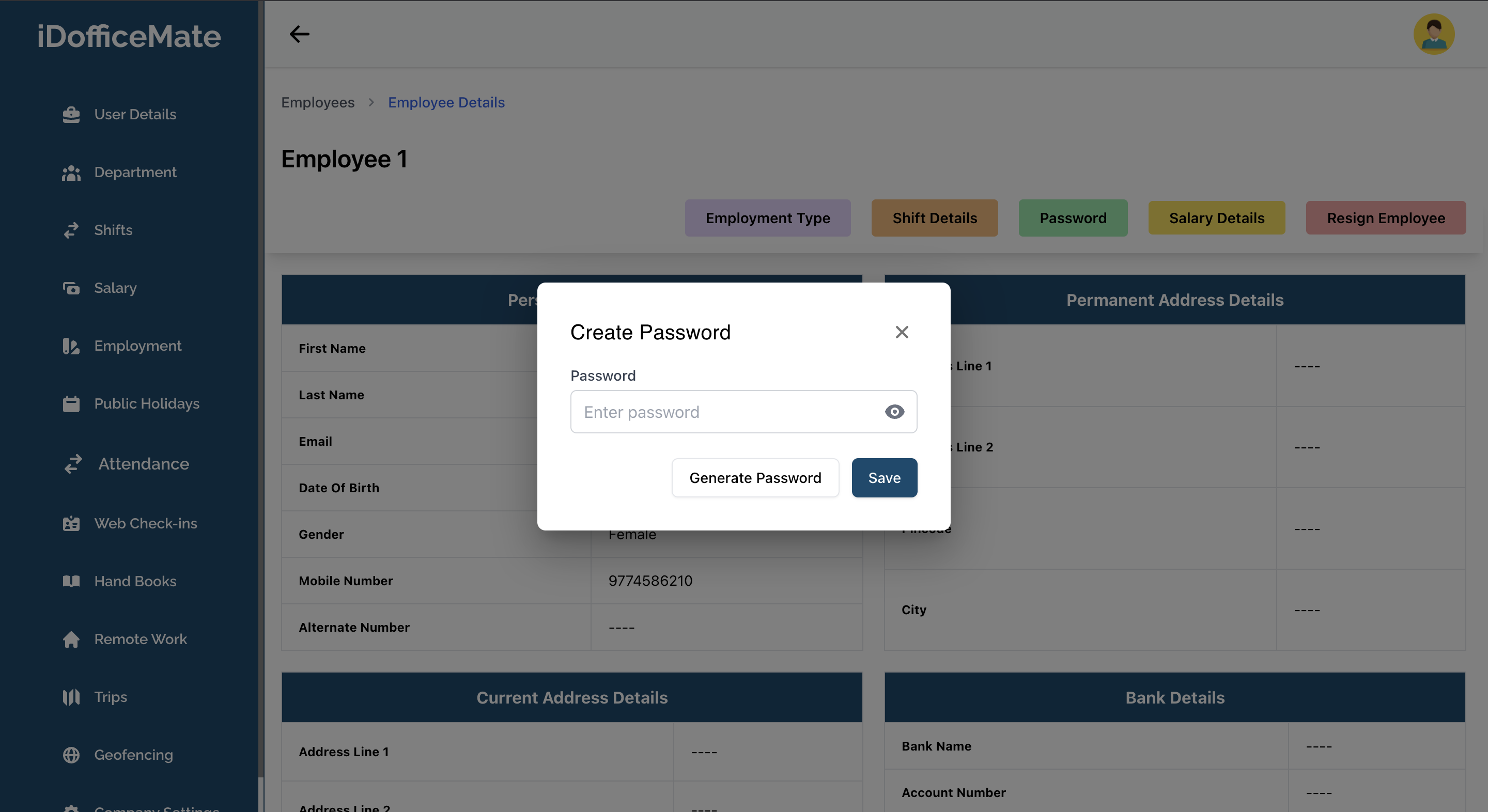
- Click on the 'Change Password' button at the top of the page.
- This opens the 'Change Password' modal.
- In the modal, you will see an input field for the New Password.
- You can manually enter the new password or alternatively, use the Generate Password button to create a strong password automatically.
- After entering the required information, click on the Save button in the bottom right corner of the modal.