Add/Edit/Delete Documents in the Hand Book
This guide walks you through the steps of adding/editing/deleting a document from the hand book.
Navigate to Hand Books in the HRMS Dashboard.
- Select 'Hand Books' from the Sidebar.
- This opens the 'Hand Book Document Listings' page.
Add a Document
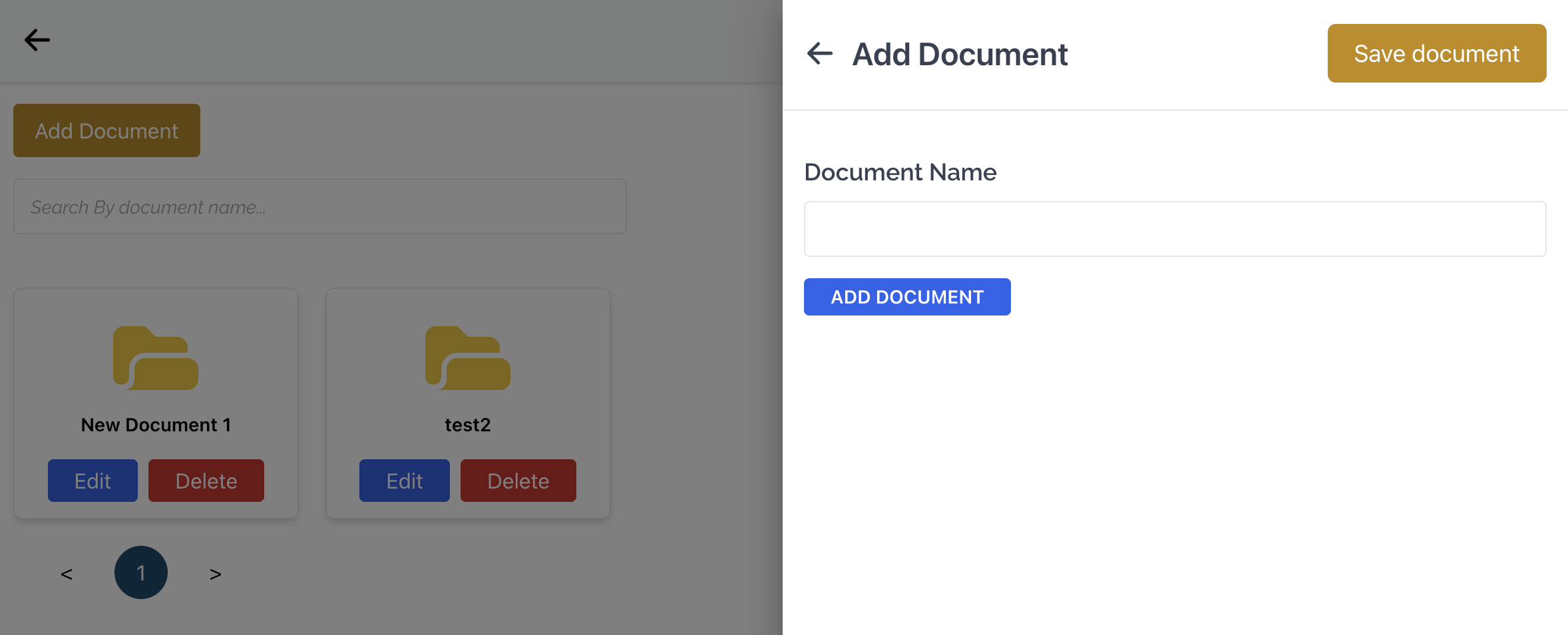
- In the Hand Book Document Listings page, click the Add Document button at the top of the page.
- This opens a modal to add a document.
- Enter the Name of the document.
- Then, click on Add Document button, which will open the File Explorer from which you can select the document you wish to upload.
- Once the document has been uploaded, click on the Save Document button at the top right of the modal to save the added document and close the modal.
Edit a Document
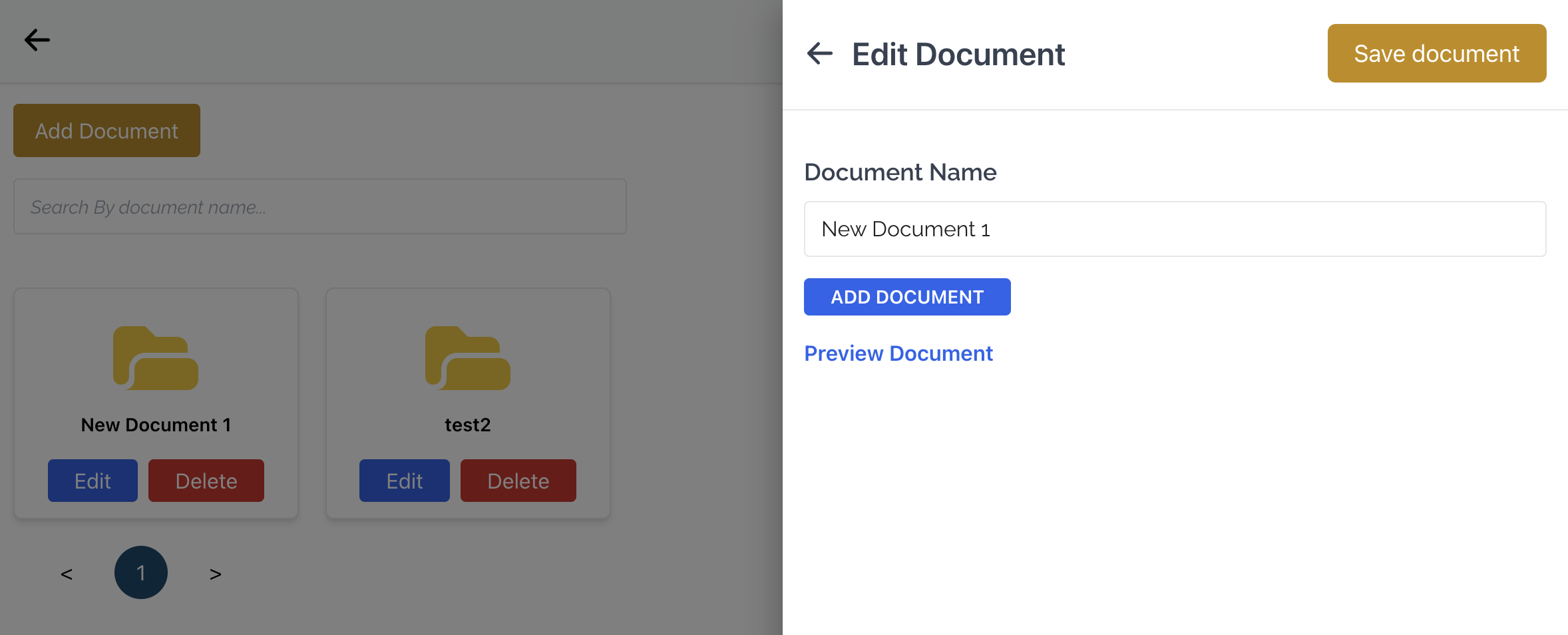
- In the Hand Book Document Listings page, click on the Edit button on a Document.
- This opens a modal to edit the document.
- Enter the new Name of the document.
- Then, click on Add Document button, which will open the File Explorer from which you can select the new document you wish to upload.
- You can click on Preview Document to preview the previous or newly uploaded document.
- Finally, once the necessary changes have been made, click on the Save Document button at the top right of the modal to save the changes and close the modal.
Delete a Document
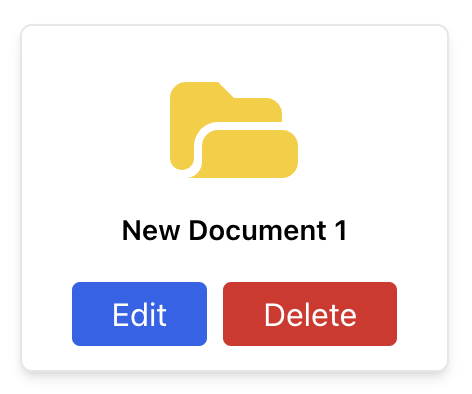
- In the Hand Book Document Listings page, click on the Delete button on a Document.
- This opens a confirmation prompt for you to confirm that you really wish to delete the document.
- Clicking on Yes will delete the document permanently and close the prompt.