Add/Edit Departments
This guide walks you through the steps viewing the list of departments and adding a new department or editing an existing department.
Navigate to Department in the HRMS Dashboard.
- Select 'Department' from the Sidebar.
- This opens the 'Department listings' page.
Add a Department
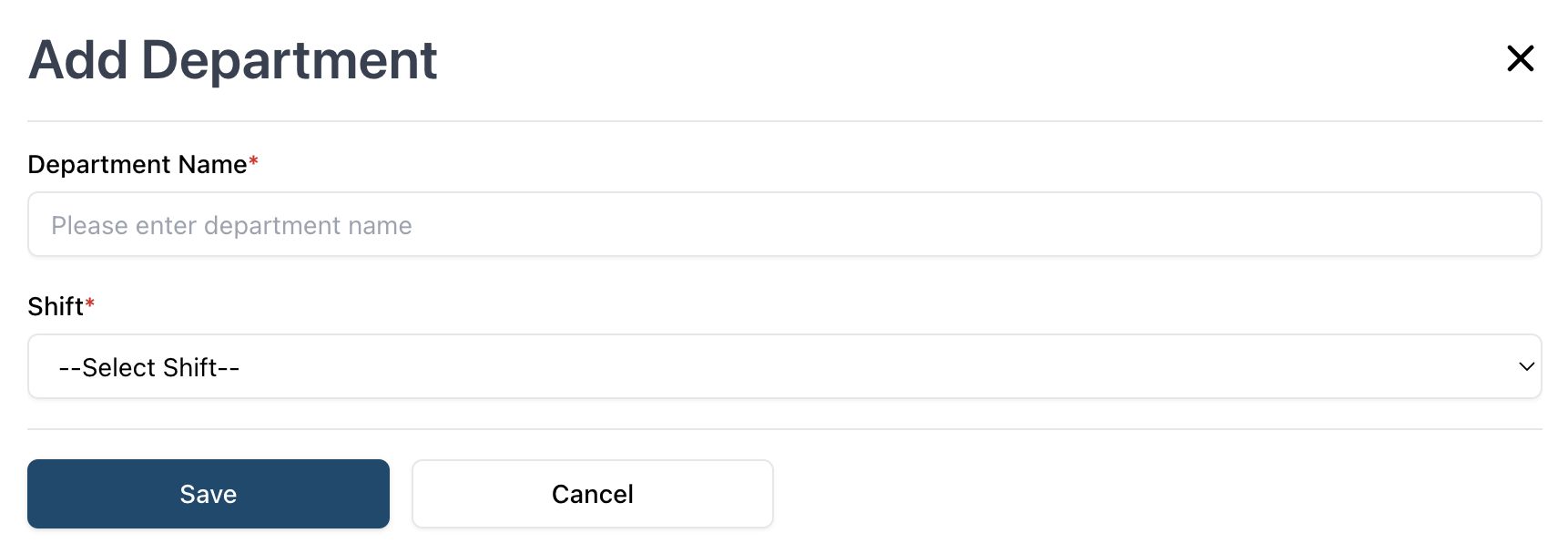
- Click on the 'Add Department' button at the top right of the page
- This opens the modal to create a new Department.
- Enter the name of the new Department
- Then, select the Shift from the dropdown.
- Finally, click the Save button to create the Department and close the modal.
Edit a Department
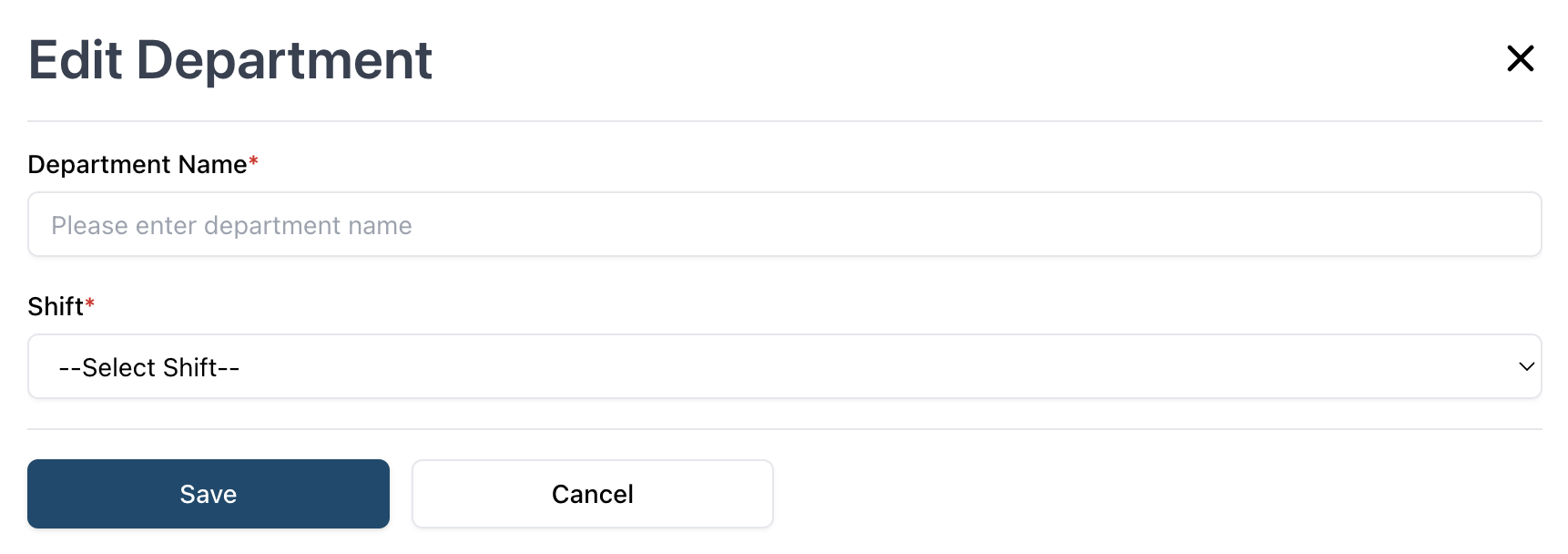
- In the Departments listing page, under the 'Modify' column of a 'Department', click on the 'Edit' icon.
- This opens the modal to edit an existing Department.
- Enter the new name for the Department.
- Then, select the new Shift to assign to this Department.
- FInally, click the Save button to save the changes and close the modal.