Add, Edit & Delete Billing Items
This guide provides an overview of how to manage billing items. It covers adding, editing, and deleting billing items in the Billing application.
Navigate to Billing Items in the Billing Application
- Select 'Billing Items' from the Sidebar, under Masters.
- This opens the 'Billing Items' page.
How to Create a Billing Item
-
Navigate to the Billing Item Creation page
- In the Billing Items listing page, you will see a list of all billing items.
- Click on the + Billing Item button at the top right corner.
-
Fill in the Billing Item Details
-
-
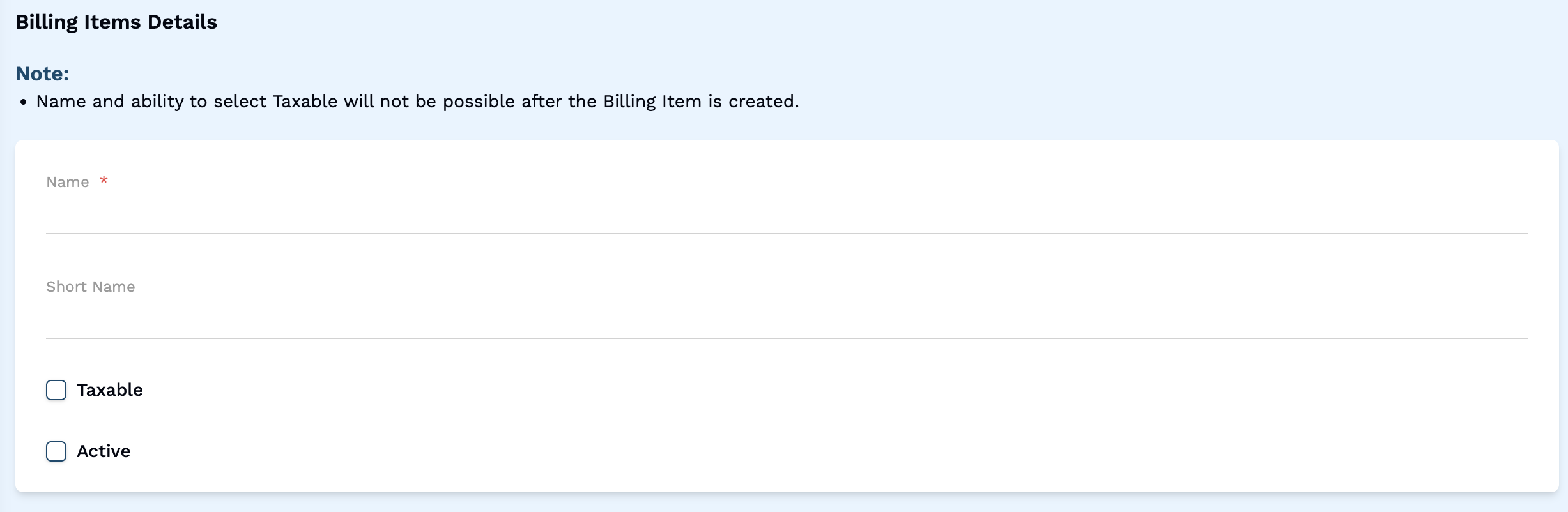
In the Billing Item creation page, you will see a form to add a new billing item.
-
Fill in the required details such as Item Name.
-
Optionally, you can enter a Short Name, and choose whether to make it Taxable and Active by checking the respective checkboxes.
-
note
You will not be able to change the Name and Taxable status of a billing item once it has been created.
-
-
Review and Submit Billing Item
- Before submitting the billing item details, review all the information to ensure accuracy.
- Once you are satisfied with the billing item details, click on the Save button to save the billing item.
How to Edit a Billing Item
-
Navigate to the Billing Item Listing Page
- In the Billing Items listing page, you will see a list of all billing items.
- Click on a Billing Item to open the edit page.
-
Update the Billing Item Details
- In the Billing Item edit page, you can update the details of the billing item.
- Here, you can only change the Short Name and Active status.
-
Review and Submit Billing Item Changes
- Before submitting the changes, review all the information to ensure accuracy.
- Once you are satisfied with the billing item details, click on the Update button to save the changes.
How to Delete a Billing Item
-
Navigate to the Billing Item Listing Page
- In the Billing Items listing page, you will see a list of all billing items.
- Click on the 3 dots icon in the Action column of the billing item you want to delete.
- From the dropdown menu, select Delete.
-
Confirm Deletion
- A confirmation dialog will appear asking you to confirm the deletion.
- Click on Delete to confirm and delete the billing item.