Add & Edit Bank Accounts
This guide provides an overview of how to manage bank accounts. It covers adding, editing, and deleting bank accounts in the Billing application.
Navigate to Bank Accounts in the Billing Application
- Select 'Bank Accounts' from the Sidebar, under Masters.
- This opens the 'Bank Accounts' page.
How to Create a Bank Account
-
Navigate to the Bank Account Creation page
- In the Bank Accounts listing page, you will see a list of all bank accounts.
- Click on the Add Bank Account button at the top right corner.
-
Fill in the Bank Account Details
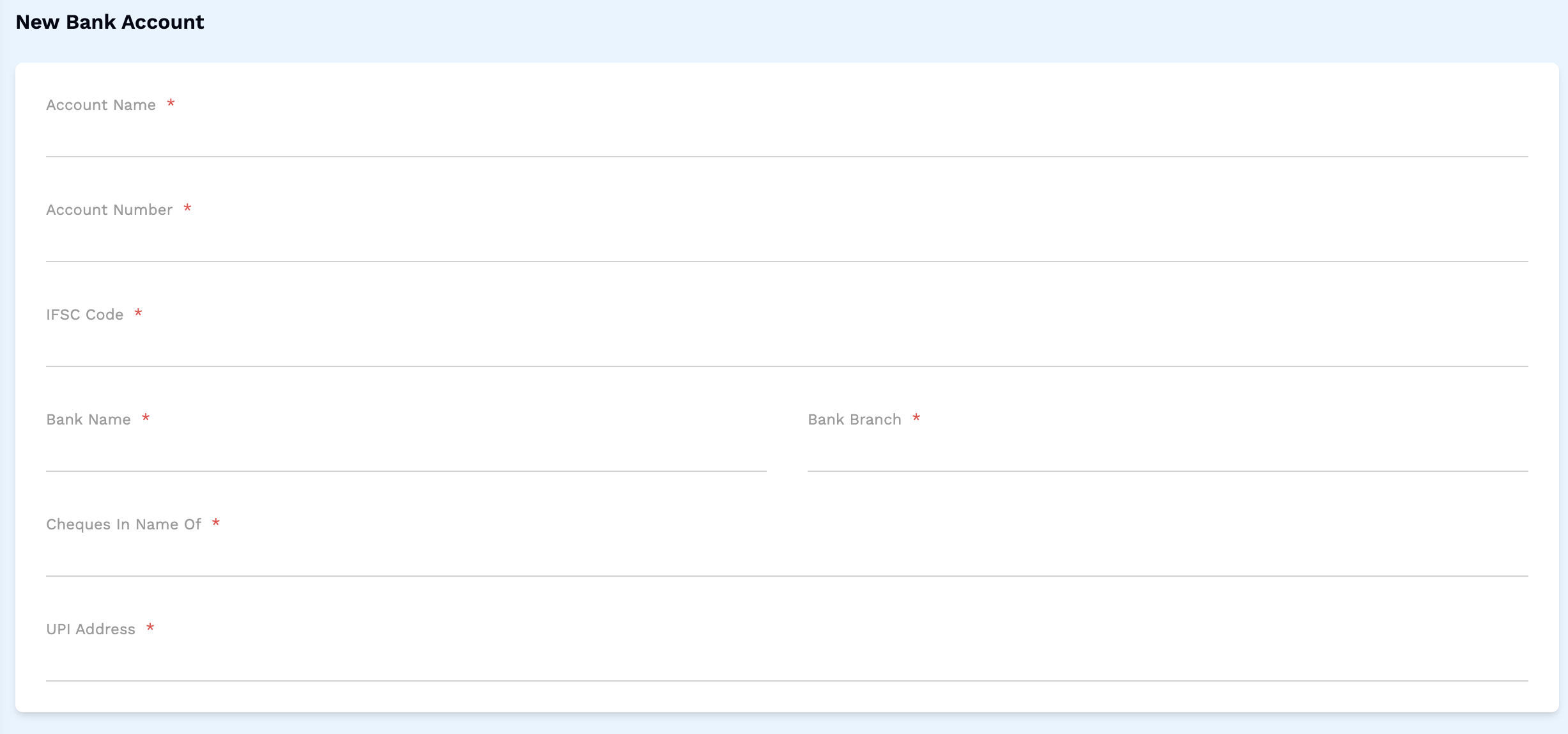
- In the Bank Account creation page, you will see a form to add a new bank account.
- Fill in the required details such as Account Name, Account Number, ISFC Code, Bank Name, Bank Branch, Cheques in name of and UPI Address.
-
Review and Submit Bank Account
- Before submitting the bank account details, review all the information to ensure accuracy.
- Once you are satisfied with the bank account details, click on the Save button to save the bank account.
How to Edit a Bank Account
-
Navigate to the Bank Account Listing Page
- In the Bank Accounts listing page, you will see a list of all bank accounts.
- Click on a Bank Account to open the edit page.
-
Update the Bank Account Details
- In the Bank Account edit page, you can update the details of the bank account.
-
Review and Submit Bank Account Changes
- Before submitting the changes, review all the information to ensure accuracy.
- Once you are satisfied with the bank account details, click on the Save button to save the changes.