Projects and workspace fields
Switch workspace and open a project
Use Personal or Company in the top bar. The page reloads to refresh the workspace. In the sidebar, search for a project, select it to open, and pin/unpin it with the pin icon. The list loads more projects as you scroll; Load More Projects is also available. All Tasks opens the cross-project task list. A shared-project indicator marks projects shared with you.
Create a project
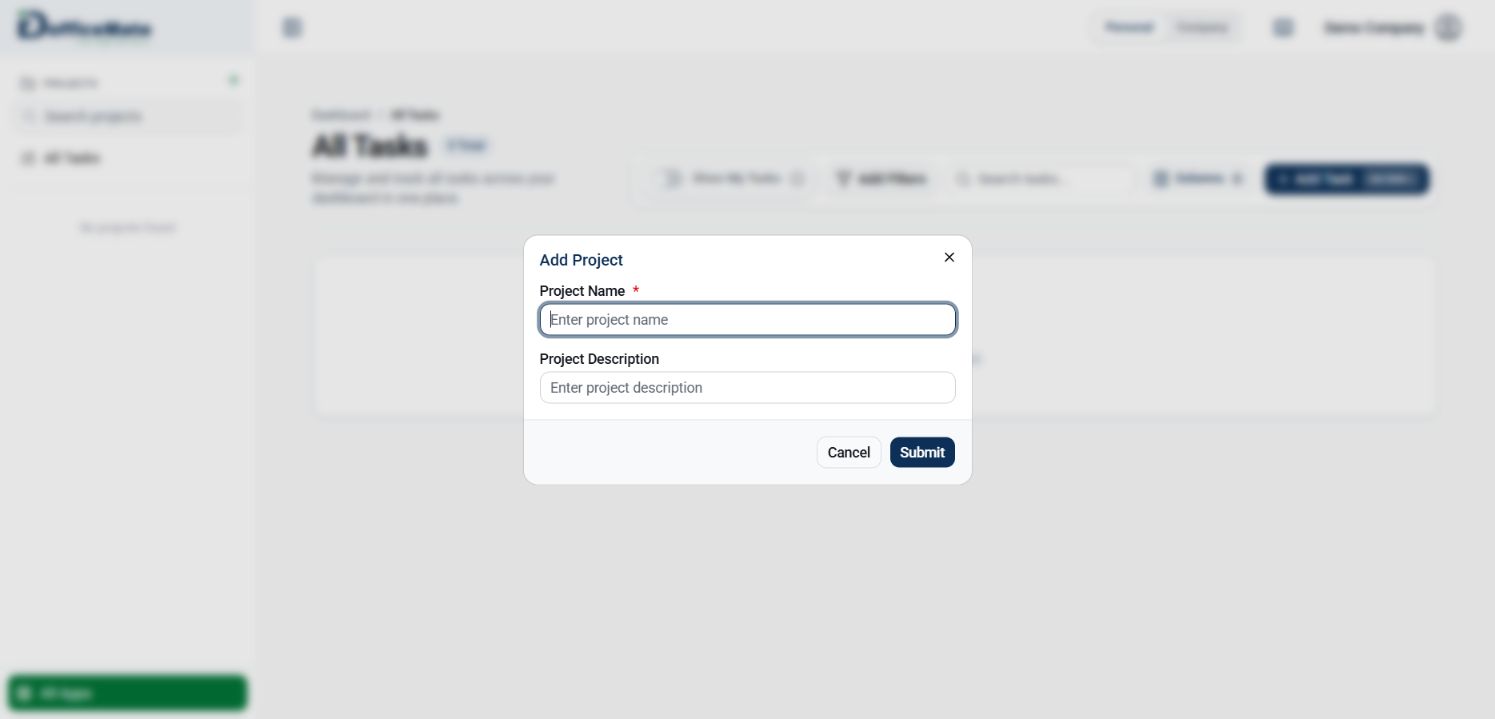
- In the sidebar, select + Add project when it is available.
- Enter the required Project Name and, if needed, a Project Description.
- Select Submit to create the project, or Cancel to close without creating it.
UAT example: the blank Add Project form shows the required project name and optional description. This is a reference only; no project was submitted.
In Company workspace, the add option is usually available to company administrators. If it is not visible, ask your company administrator for access.
Configure a project's columns
Open a project and select Settings. Under Table columns, select Select columns. Check the shared fields to include, use Select all columns if appropriate, and choose Save selection. To make a project-specific field, choose Add custom column instead.
For a custom column, enter Column name (required) and select Data type (required): String, Number, Date, Person, Dropdown, Mobile Number or Attachment. Select Save column. The field then appears in project columns. Change a custom column's name in its settings row; global column names are read-only there. Change a field's type via its selector. Use the All tasks checkbox to include the column in cross-project task lists, and Show column to show or hide it in the project table. Reordering columns is done by dragging them; the order saves through the app.
For a Dropdown column, save the column first, then open its settings and select Configure options. Add or remove options, enter each Option label (required), and set its text and fill colors. Select Save options. To make the dropdown's choices the Kanban board lanes, open column settings and choose Enable Kanban view. At least one dropdown option is required. To remove a project column, choose Delete column in settings and confirm; the warning notes that existing values may no longer be available.
Configure workspace-wide columns
- Choose Settings from the app menu, then open Global columns.
- Select Add global column, enter a name, and choose its type.
- Save the new column. You can reorder columns, show or hide them, include them in All tasks, and set choices for dropdown columns.
- Before deleting a global column, review which projects use it. Confirm the deletion when prompted; it may remove that field from those projects.
The settings page currently has one tab, Global columns. It does not expose a general project settings panel or task recurrence configuration.