Find and manage projects
Find a project
- Choose Projects in the left menu.
- Search with Search... and use the page controls to browse results.
- Select a project row or open its action menu and choose the details view.
Add a project
- On the project list, choose Add Project.
- Enter a Project Name with at least two characters.
- Optionally choose one or more Category values. Search the list by category name or short code.
- Optionally enter a Project Description and choose a Customer.
- Choose Create Project. To leave without saving, choose Cancel.
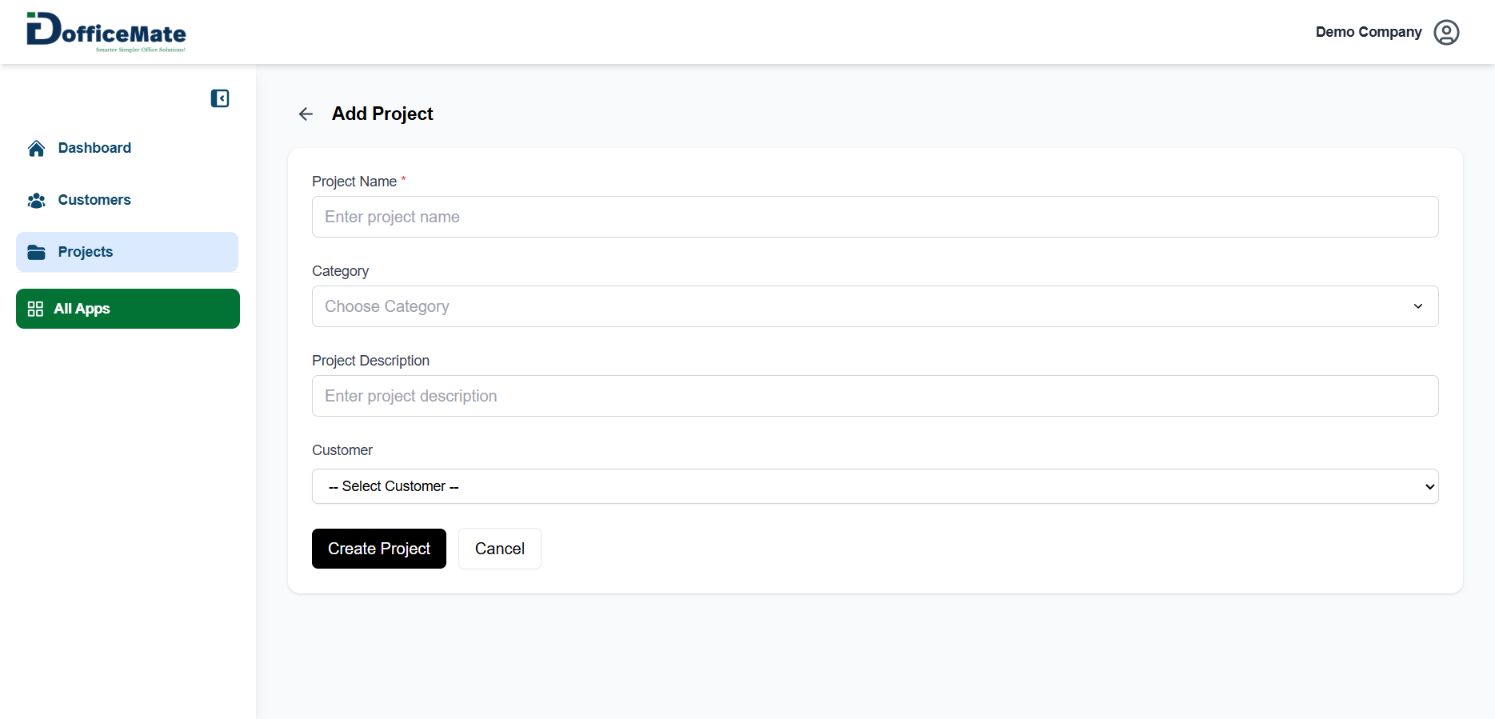
UAT example: the field layout may look different in your company’s current version.
Edit project details
- Open the project and choose Edit Project, or choose that action from the project row menu.
- Change the project name, description, customer, or categories. The form starts with the current values.
- Choose Update Project to save.
Mark a project complete
- Open a project that is not complete.
- Choose Complete Project.
- Confirm in the browser prompt. After a successful update, the page shows Project Completed.
The service determines whether the update succeeds. No project delete control is available.
For blockers and the project communication log, follow Record project blockers and updates.