Create and manage maintenance contracts
Open AMC in the left navigation. The list shows customer, duration, contract dates, amount and status. Use Search to find a contract; results update after a short pause. The list is paginated, so use the page controls to move through the result set. You can also open the dashboard's View All link to view ongoing or expired contracts.
Add a contract
- Select Add New AMC.
- Choose a Customer. The project selector becomes available after a customer is selected. Choose the customer's Project. Both fields are required on this form.
- Choose a Duration if known: Monthly, Quarterly, Annual or Custom. Duration is optional. For monthly, quarterly and annual choices, the end date is calculated from the start date. If you manually change that date, duration changes to Custom. Custom lets you select the end date yourself.
- Choose a Status from the searchable selector. The form defaults to To Be Started; status is not marked required in the form.
- Enter Start Date and End Date if available. Both are optional. End Date stays unavailable until a start date is selected, and it cannot be earlier than the start date. With a standard duration, the end date is prefilled from the start date.
- Enter Amount (optional; must be zero or greater) and Notify before (days) (defaults to 7; must be zero or greater). Add optional Remarks.
- Add optional Contact Name, Contact Number, and Contact Email. If entered, each has a minimum length of two characters; check the contact email carefully before saving.
- Optionally select a Company Point of Contact from the searchable employee list.
- Select Save AMC. Select Reset to clear the form back to its defaults. On successful save, the app returns to the previous page and shows a success message.
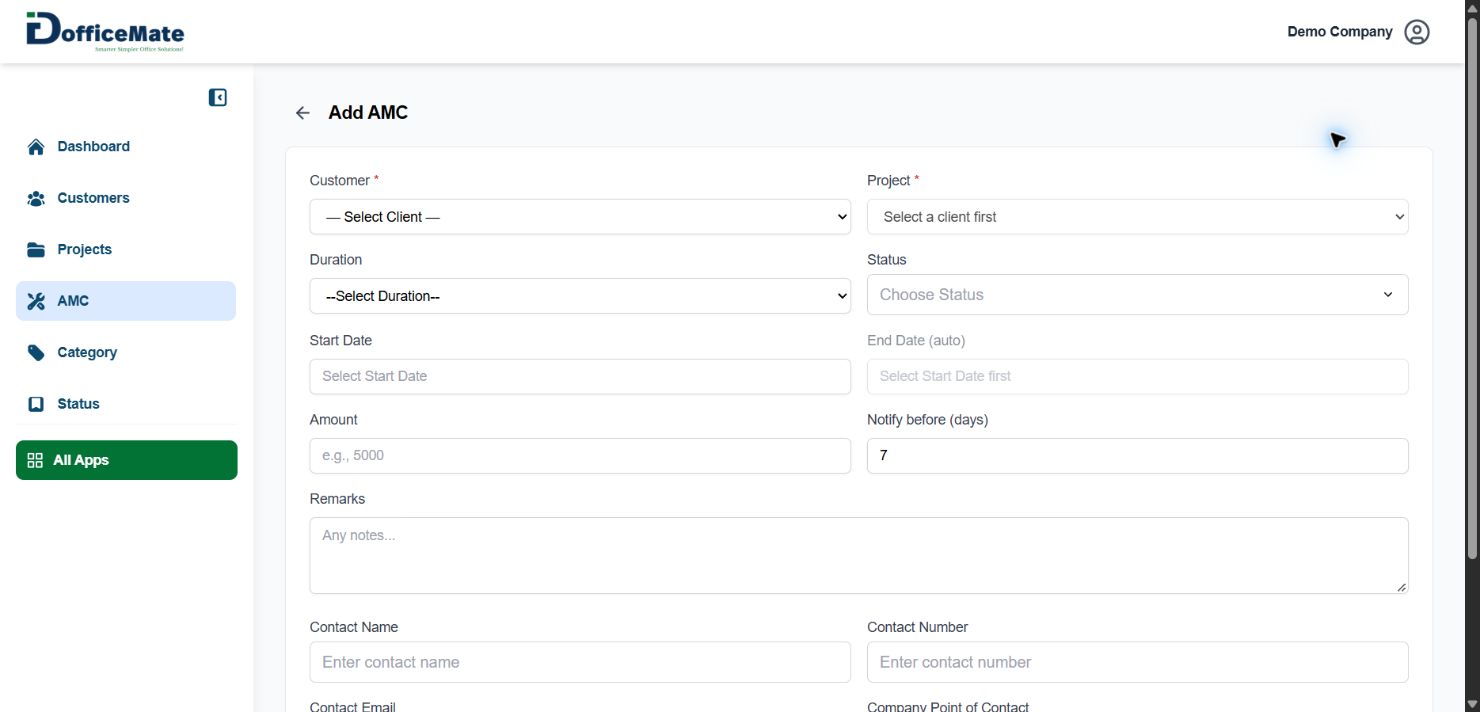
UAT example: the field layout may look different in your company’s current version.
Create an AMC from a customer's project
- Open Customers, open the customer, and scroll to Customer Projects.
- In the target project row, select Add AMC (or Add New AMC for an expired contract).
- Complete the remaining contract fields and select Save AMC. The customer and project values are filled from the project and hidden on this entry path.
The customer project table also shows project status and AMC status. View AMC opens the contract details when a record is available.
View and edit a contract
- Select a row in the AMC list to open AMC Details. Details include customer, project, duration, contract period, amount, notification period, status, renewal indicator and remarks when present.
- Select Edit AMC.
- Update the form values and select Update AMC. On success, the app returns to the previous page and confirms the save.
The UI does not offer a delete action, file attachments, document downloads, renewal command, or approval workflow. Renewal is displayed as information only. Contract status choices include the statuses supplied by the status list; the list view recognizes Ongoing, Expired, To Be Started and About To Expire.